
 View full image ↗
SCREEN 01
School admissions home
Present admission projects and entry points using a demo school in an isolated local copy.
Present admission projects, design application forms, review applicants and documents, schedule exams and seating, and provide executive summaries.
Inside the application · Full image ↗A distinct package for this product. Explore its features and actual application screens on this page.
Explore application screens ↓
Large images with a description for every screen. Open any image to inspect it at full size.
Applicants access projects while staff review records and design forms.
View full image ↗Present admission projects and entry points using a demo school in an isolated local copy.
 View full image ↗
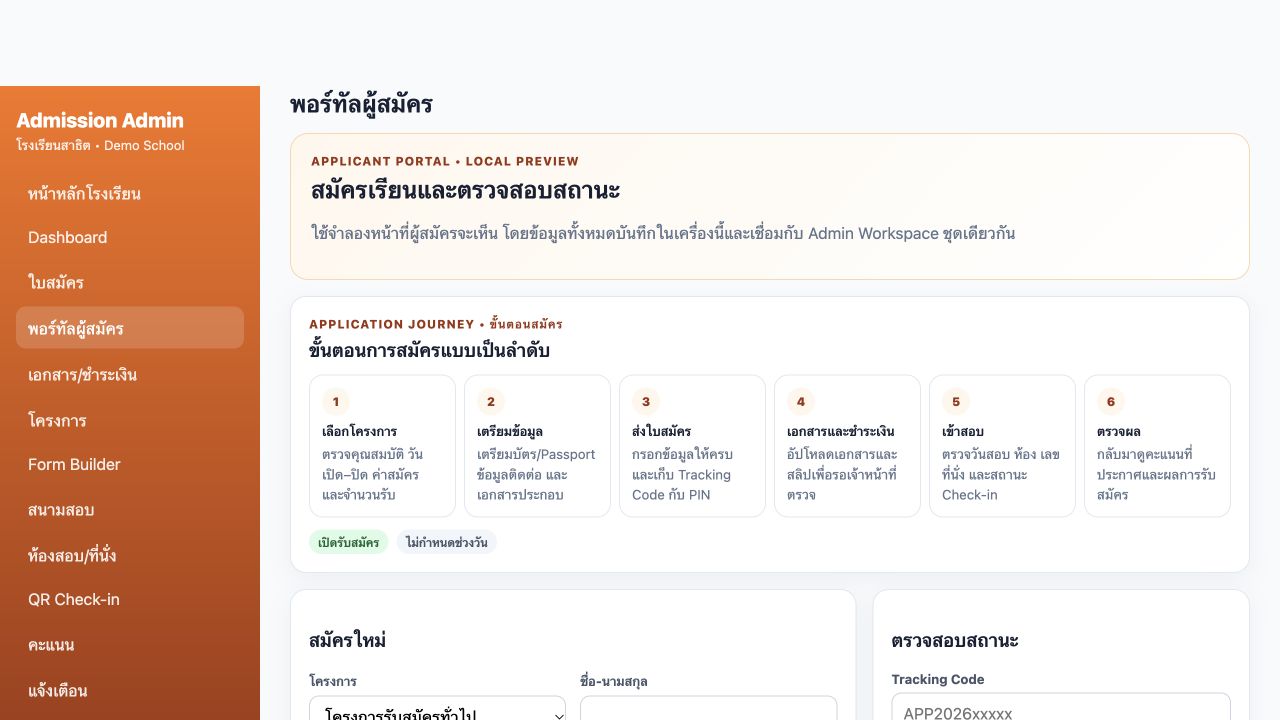
Applicants see the journey, project, core form and additional fields, with status lookup using a tracking code and PIN. This view is a local preview.
 View full image ↗
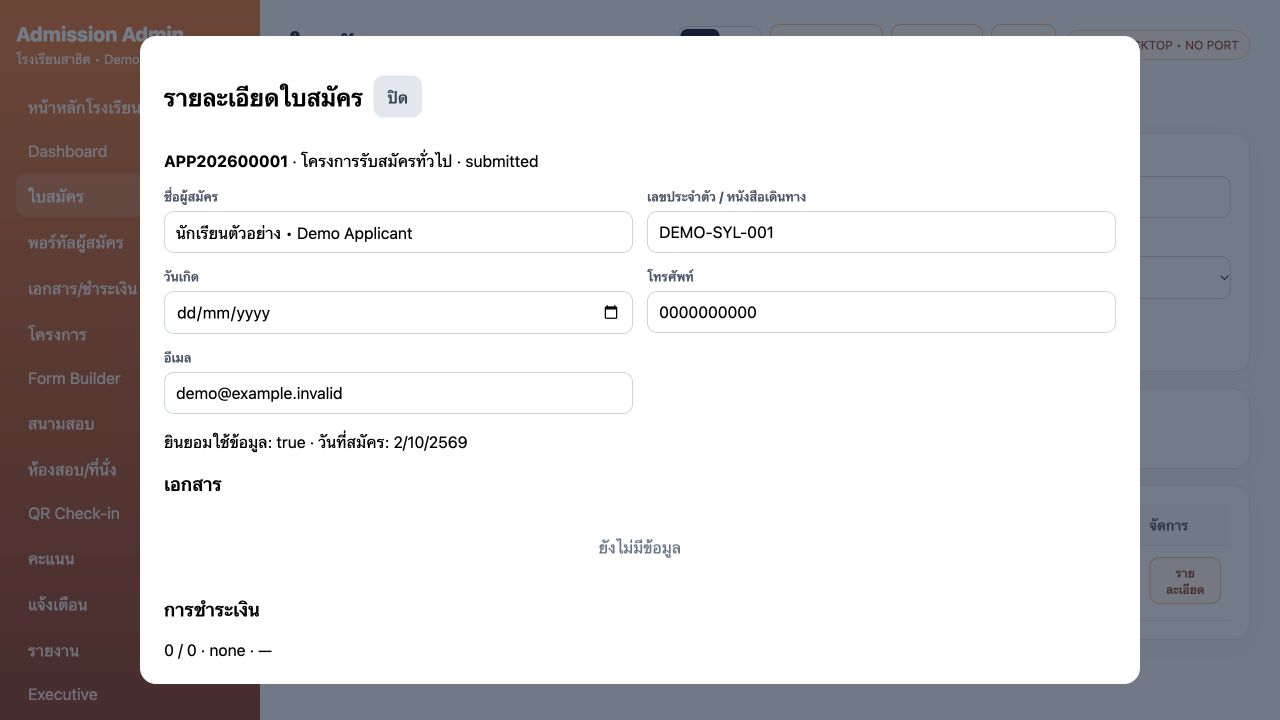
Open an applicant record to review contact information, project, status, documents, payment and exam details, with save and application-print controls.
 View full image ↗
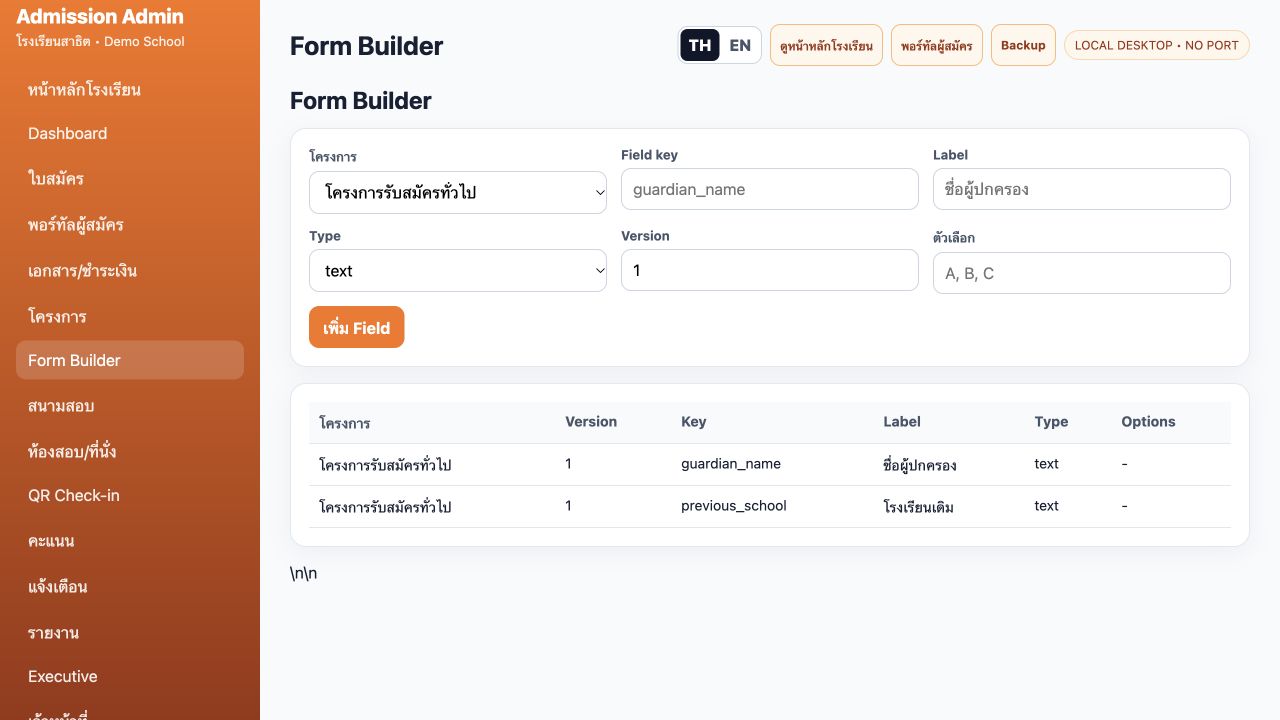
Define fields, data types, choices and form versions for each admission project.
 View full image ↗
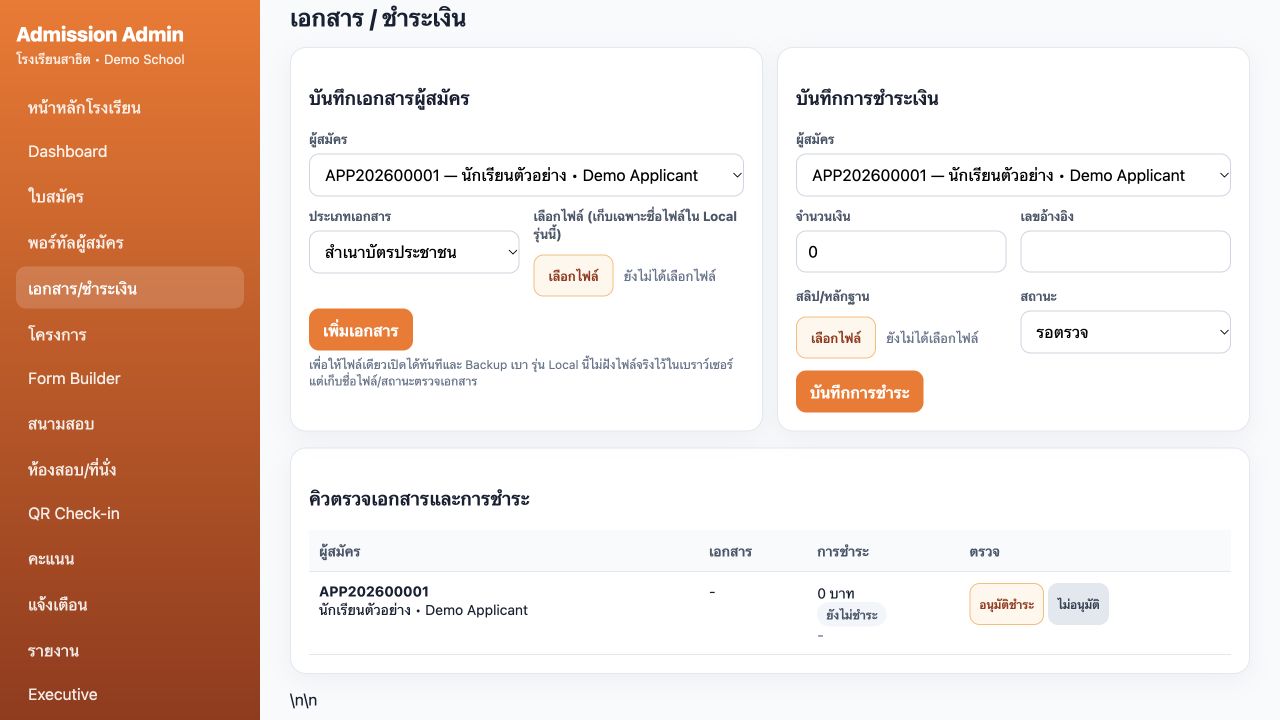
Choose an applicant and document type, record evidence and payment information, and review the queue in one table. This local edition stores file names and status.
 View full image ↗
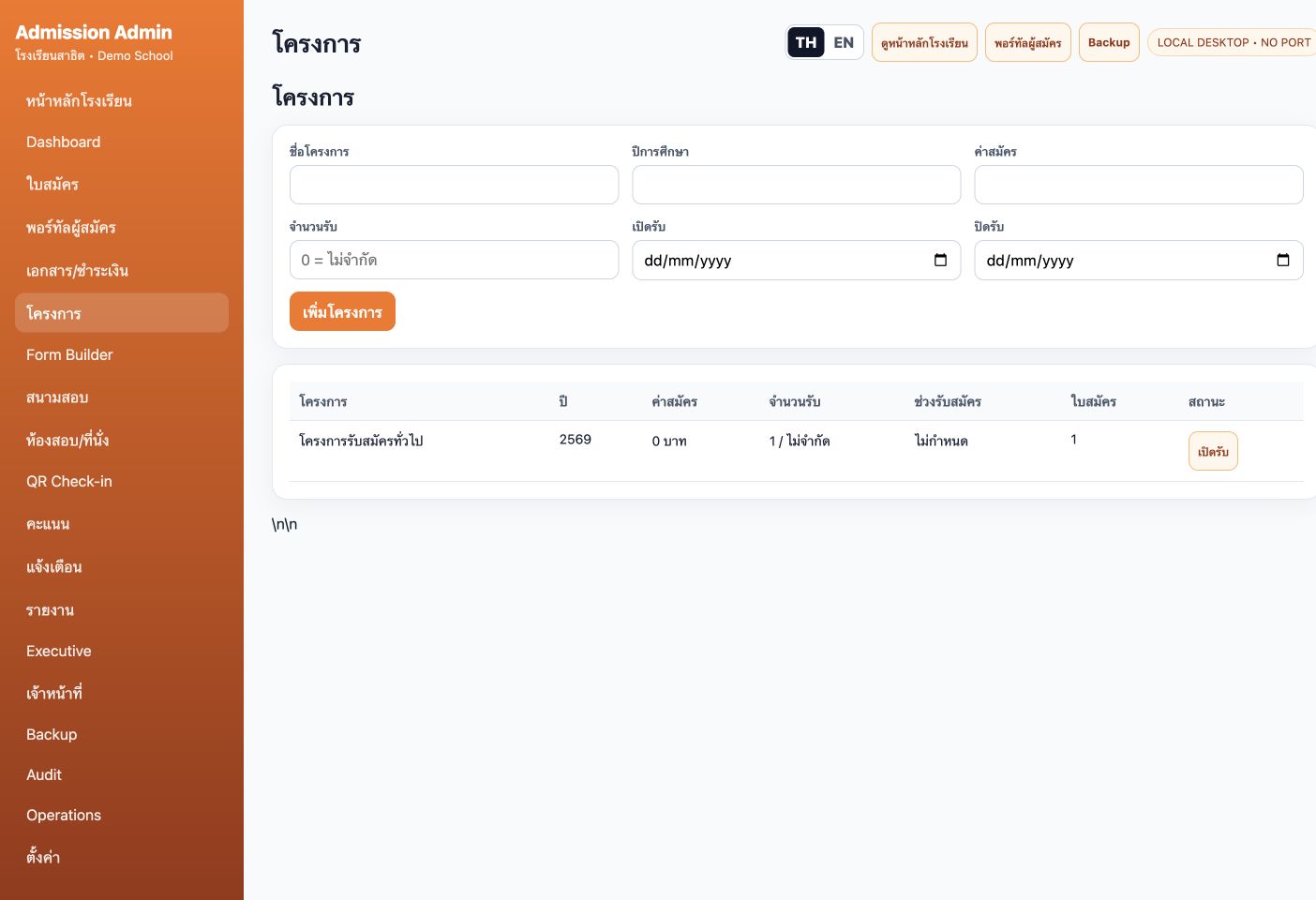
Set project name, academic year, fee, quota and opening/closing dates, then review application counts by project.
Prepare exam dates, rooms and seat numbers, then review project-level summaries.
 View full image ↗
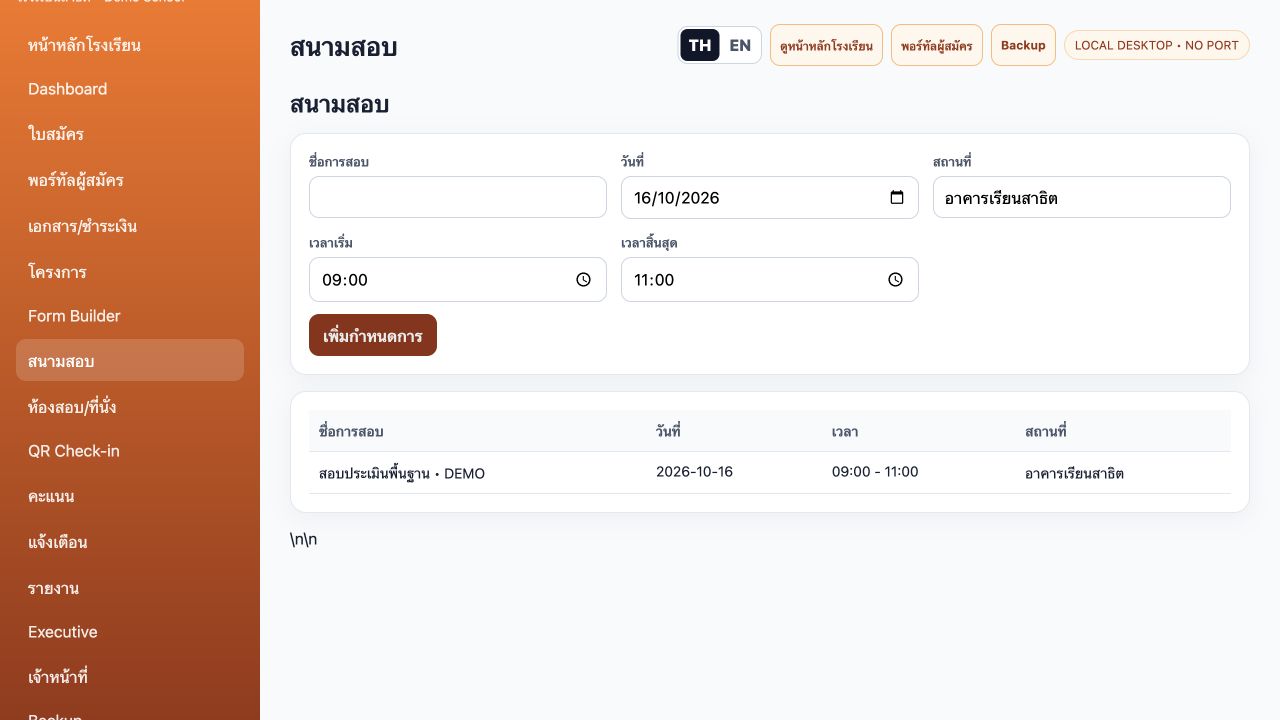
Enter the exam name, date, venue and start/end time. The table shows the demo schedule created through the interface.
 View full image ↗
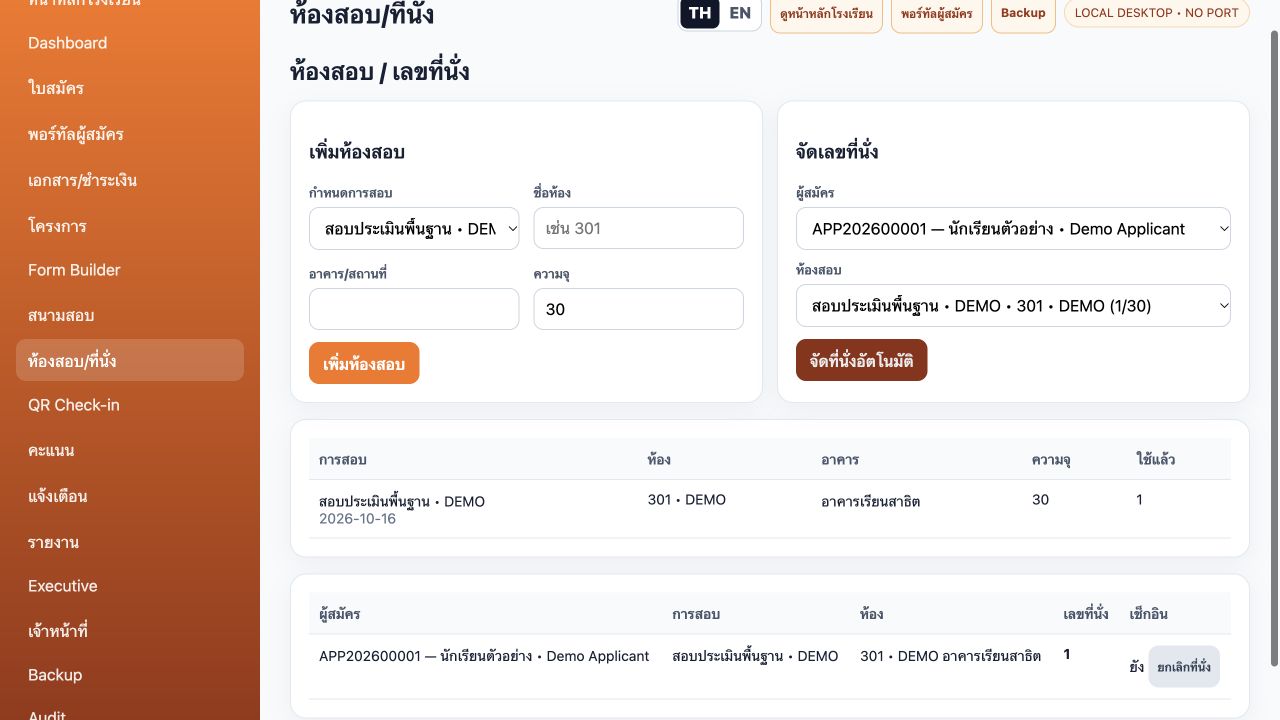
Create exam-linked rooms with building and capacity, then assign seats. Tables show room occupancy and the seat assigned in the demo workflow.
 View full image ↗
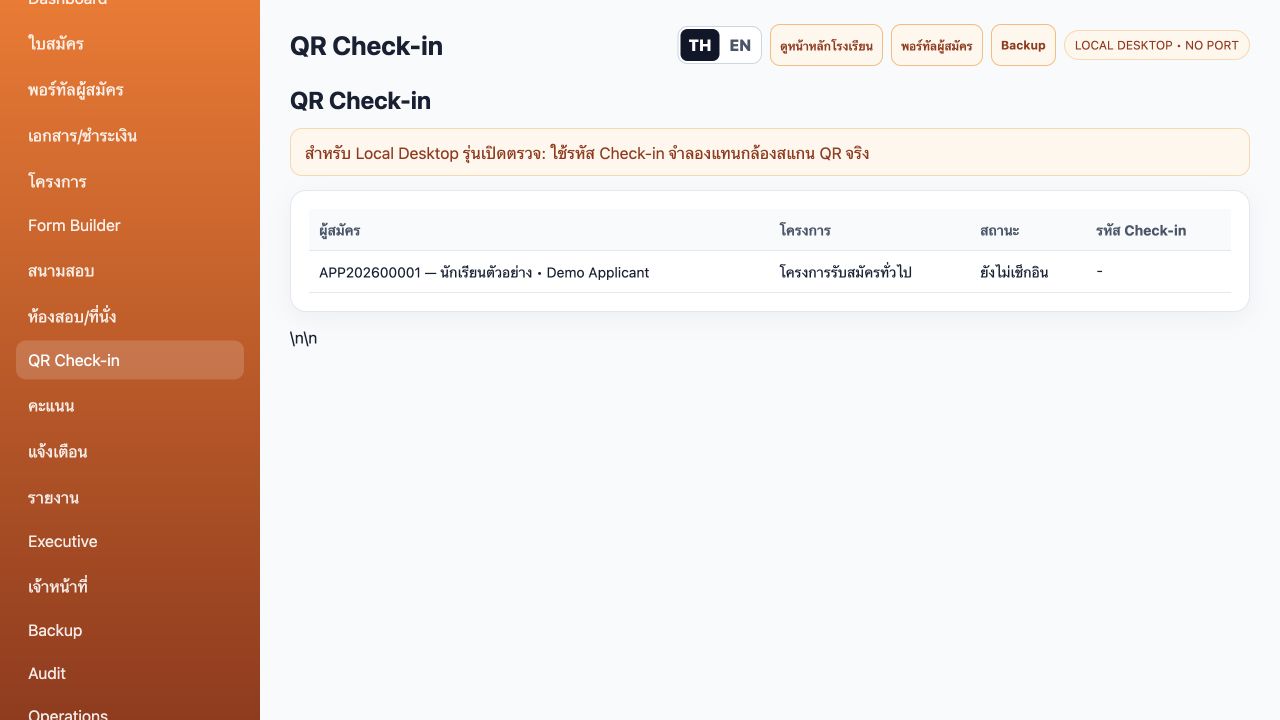
Review applicants, projects and check-in status in one list. This local test edition uses simulated codes instead of camera QR scanning.
 View full image ↗
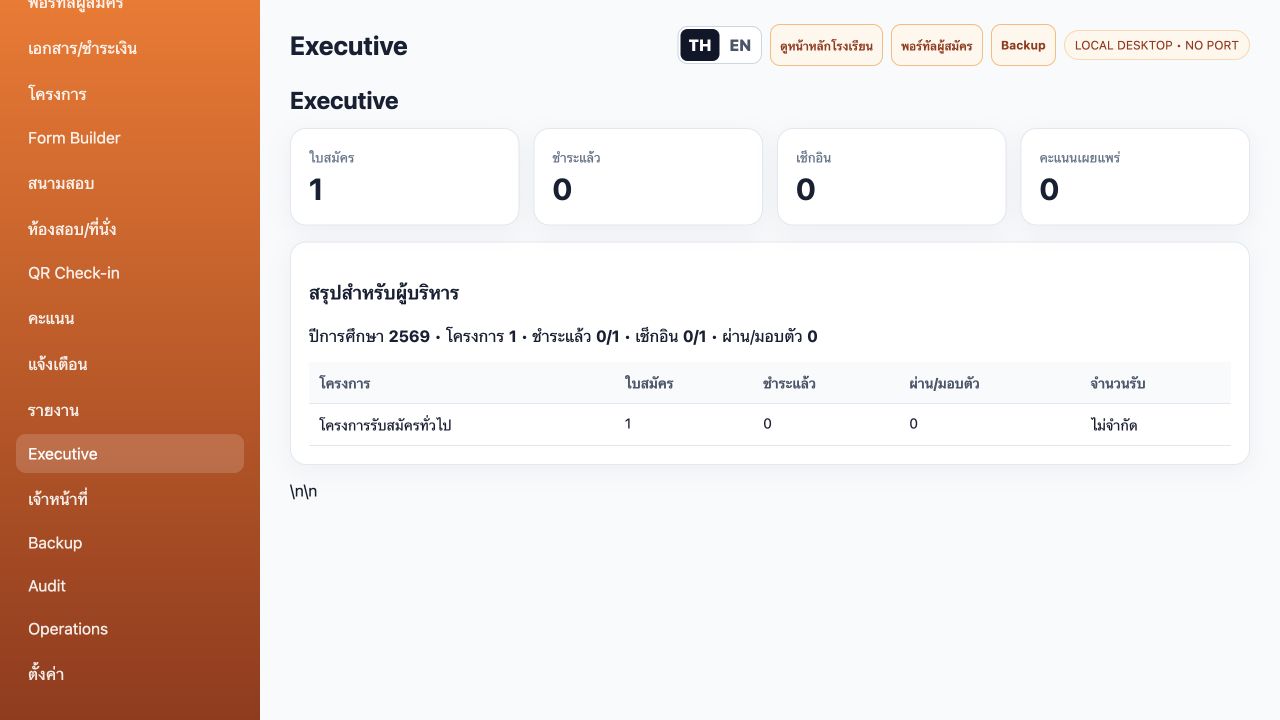
Review applications, payment, check-in, published scores and project quotas. This capture includes an applicant created through the interface.
 View full image ↗
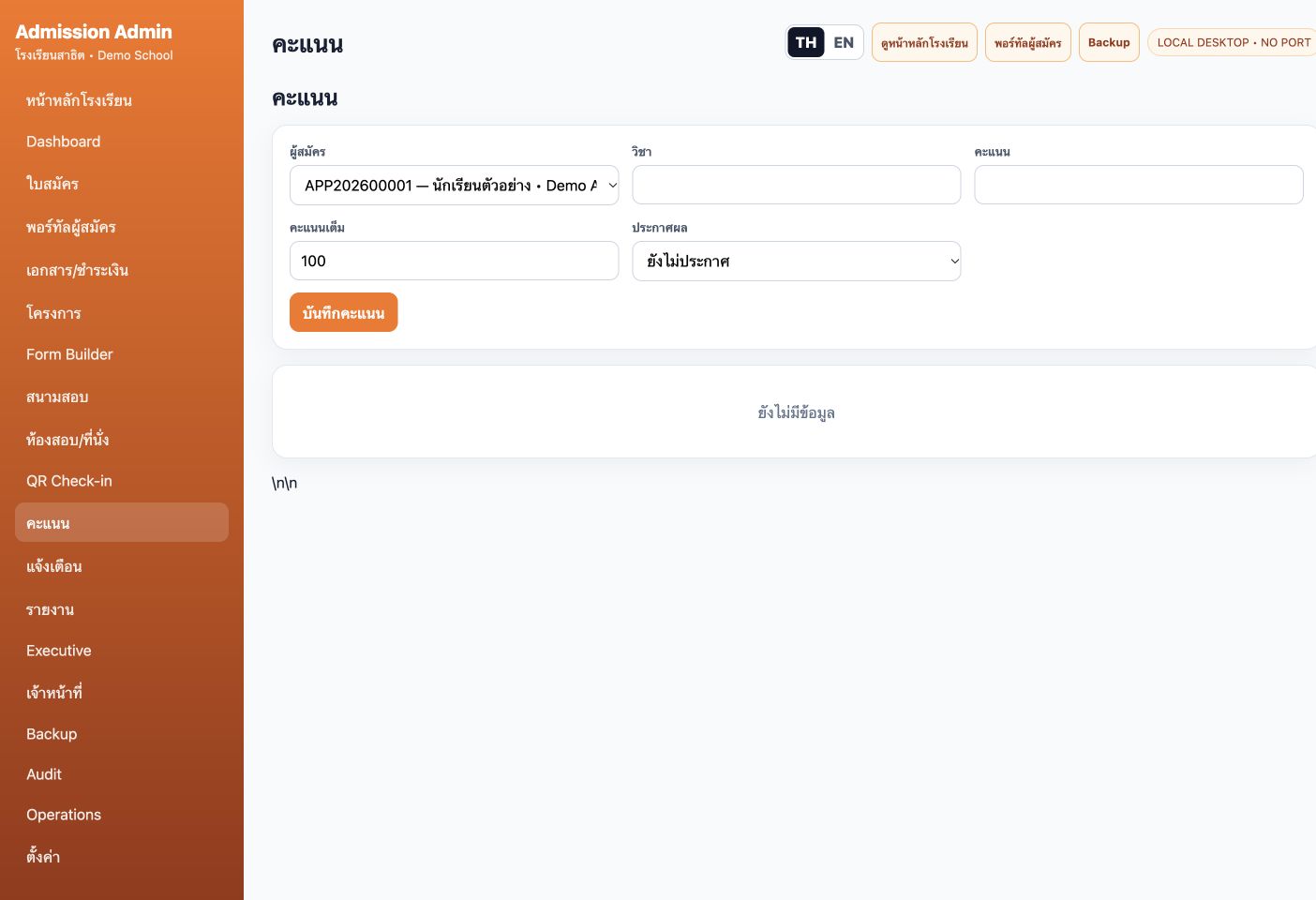
Select an applicant, subject, score and maximum score, with unpublished/published status controls. The form is shown before any score is recorded.
 View full image ↗
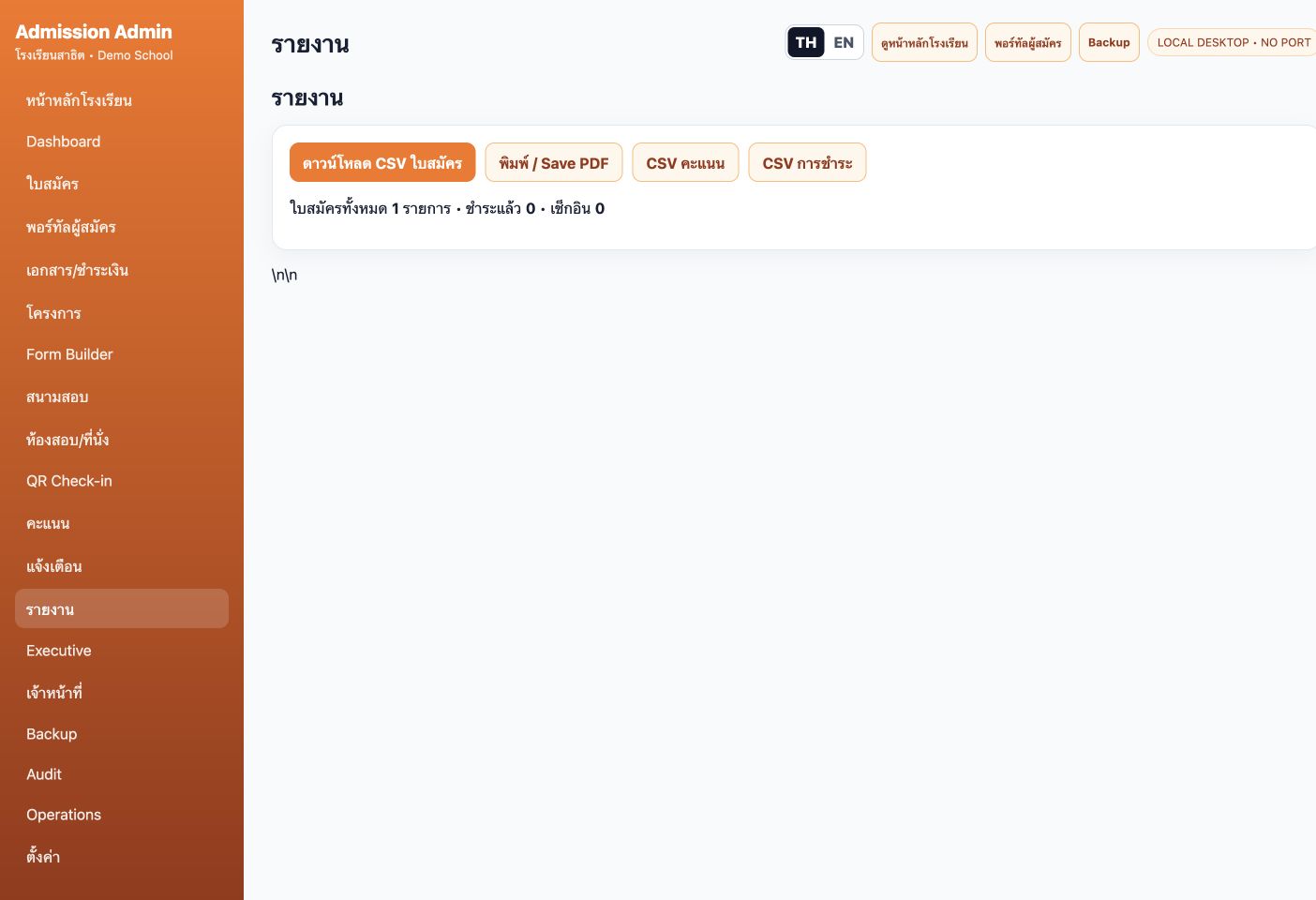
Access application, score and payment CSV controls plus print/Save PDF, alongside application, payment and check-in totals.
Inspect local data relationships and prepare backups.
 View full image ↗
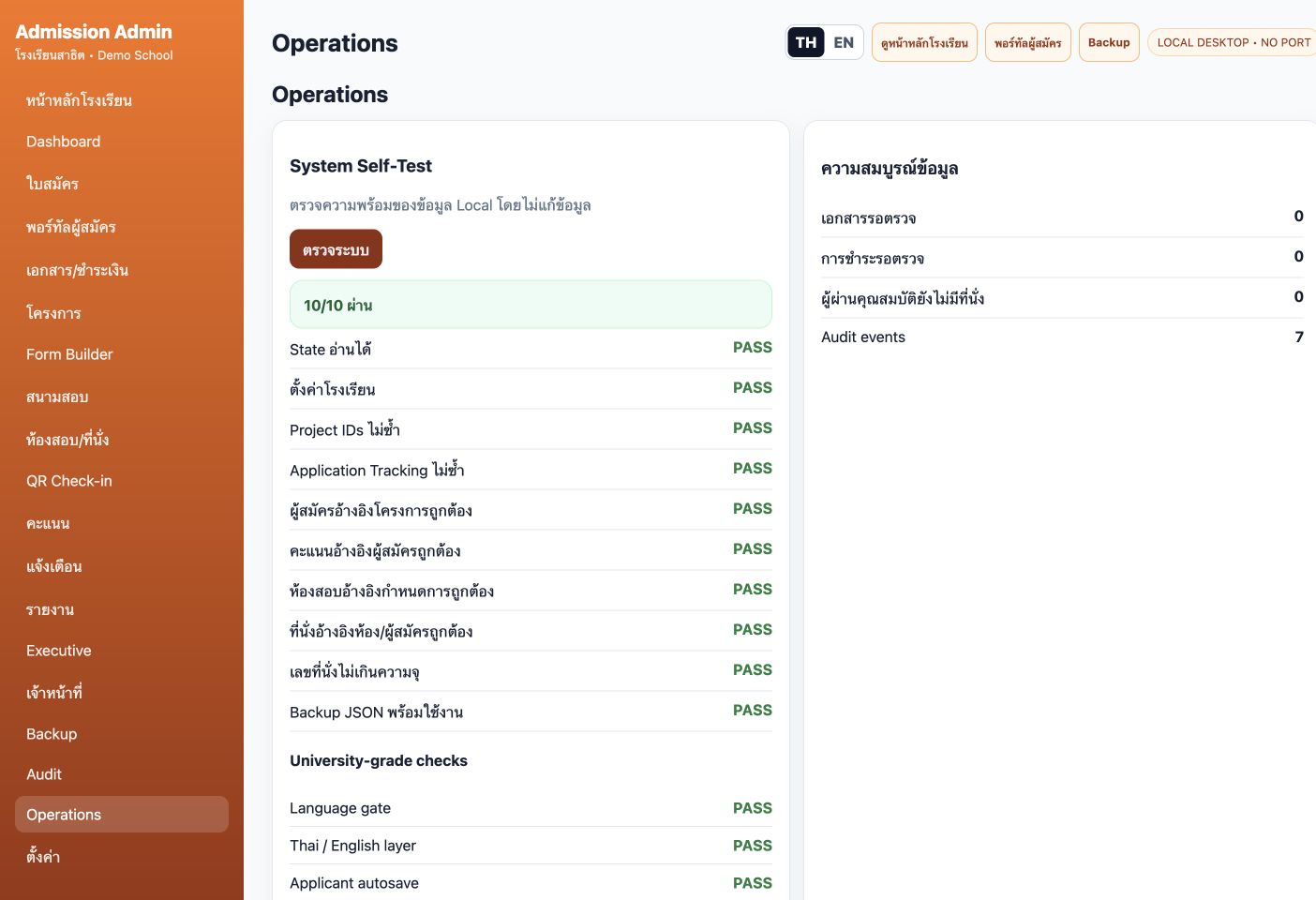
The built-in check reports 10/10 for this demo dataset, including unique IDs, project/exam/seat relationships and capacity, alongside review queues and audit counts. These are application-internal checks.
 View full image ↗
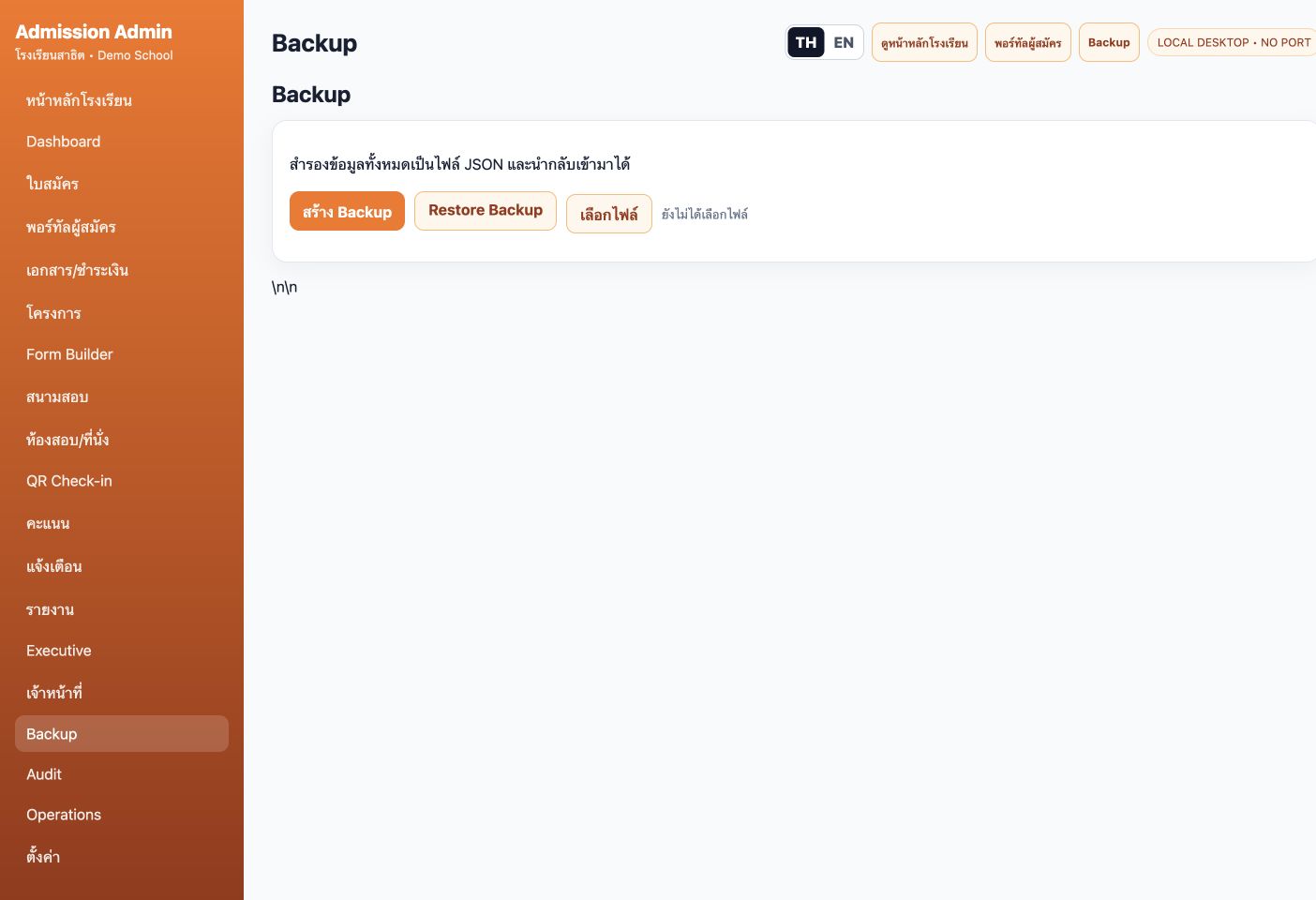
Back up local application data as JSON and choose a file for restoration. The capture shows the tools without restoring over current data.
Captured from a local Desktop copy using a demo school, applicant and exam schedule. The local edition stores document names/status and uses simulated check-in codes; it does not verify live online payments or camera QR scanning.
Discuss users, equipment, existing data and required processes to determine the appropriate edition and installation.